

What Snippets Are For
Snippets suit any message your team sends over and over:- appointment confirmations and reschedule options
- “running late” notices
- answers to common questions about pricing, financing, or hours
- opt-out acknowledgements
- follow-ups after a missed call
Insert a Snippet While Replying
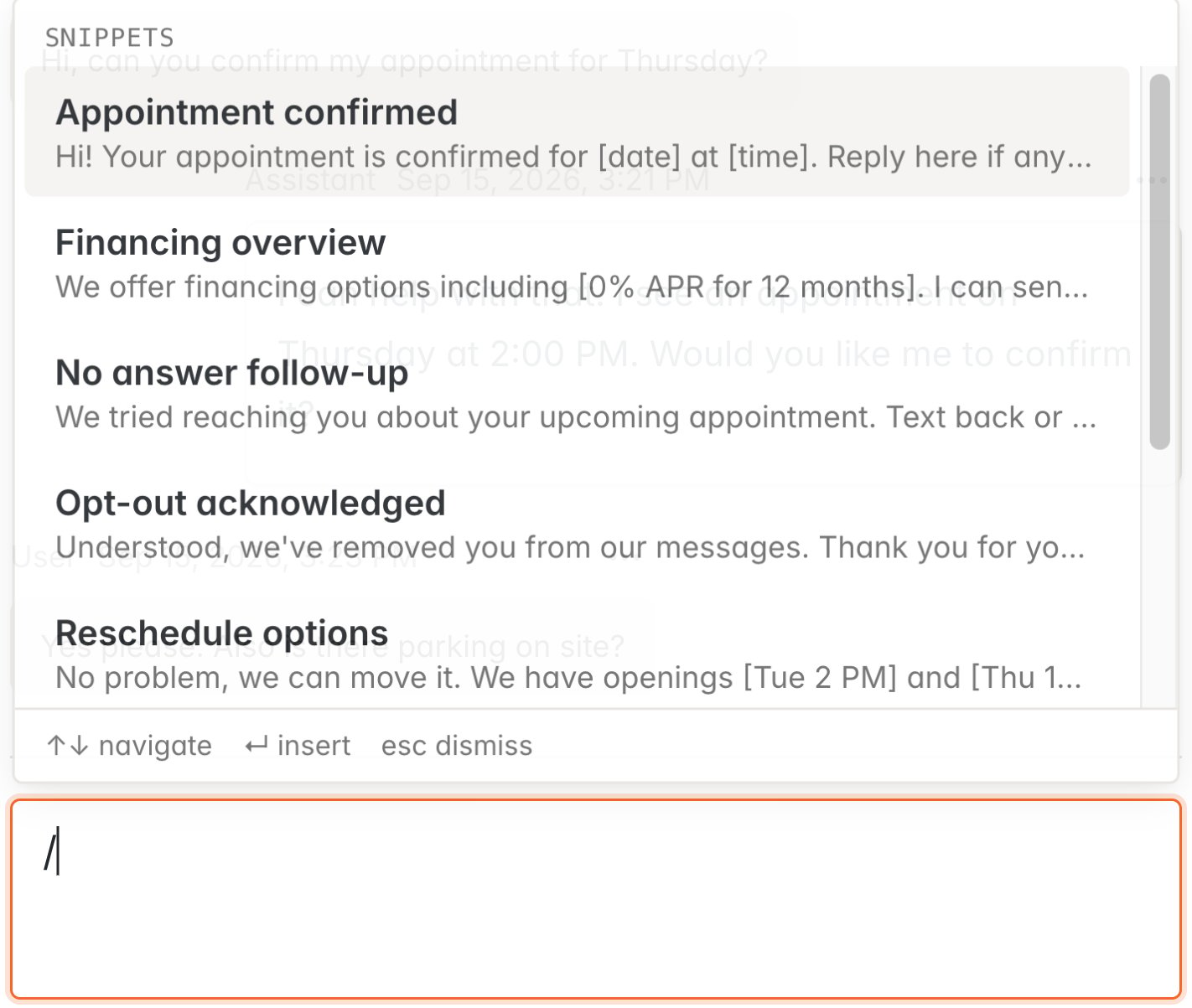
Open an SMS conversation and type/ in the reply box. The snippet list opens straight away.
/conf finds a snippet named “Appointment confirmed” as well as one whose body mentions confirming.
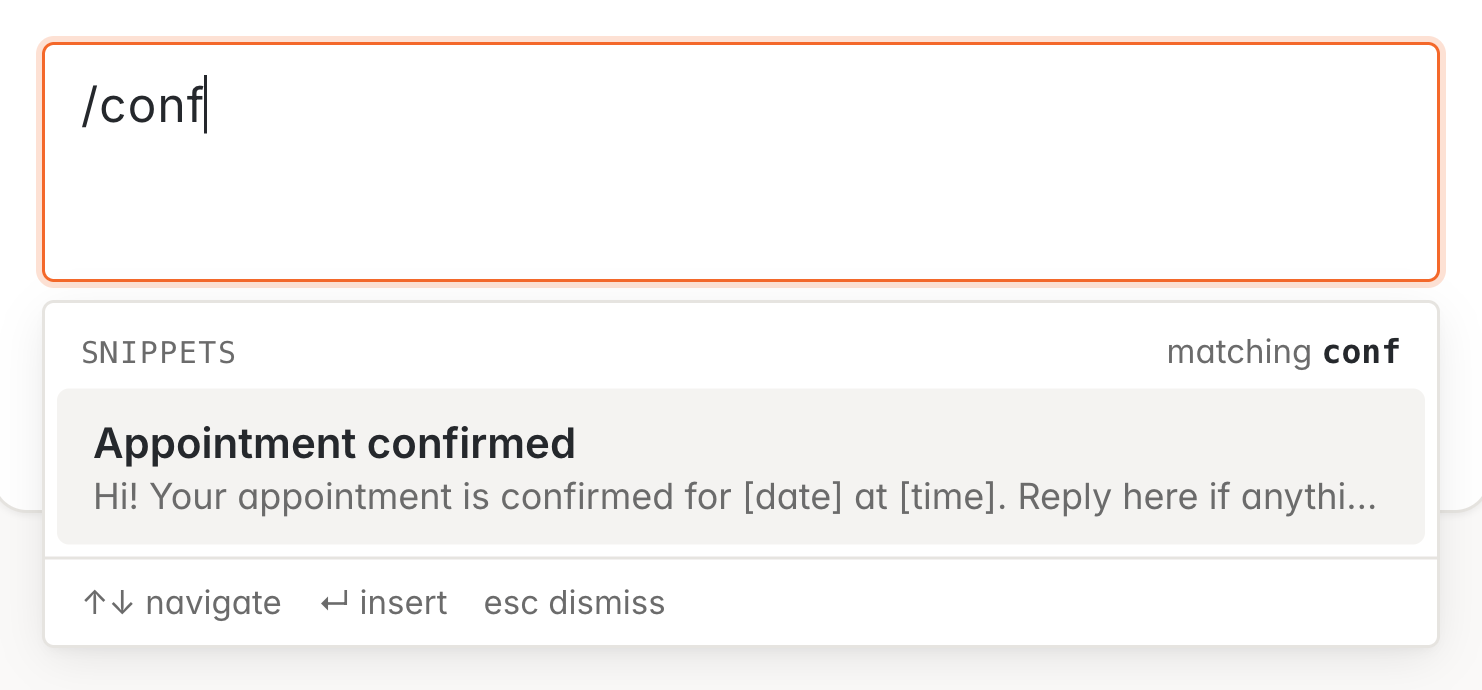
Enter and the snippet replaces what you typed. Your cursor lands at the end of the message, ready for you to edit or send.
Keyboard Shortcuts
The slash only opens the list at the start of a message or after a space, so ordinary text such as
https://example.com or 24/7 is unaffected.
The Snippets Button
If you would rather use the mouse, click Snippets next to the paperclip below the message box. It opens the same list and inserts the snippet wherever your cursor is.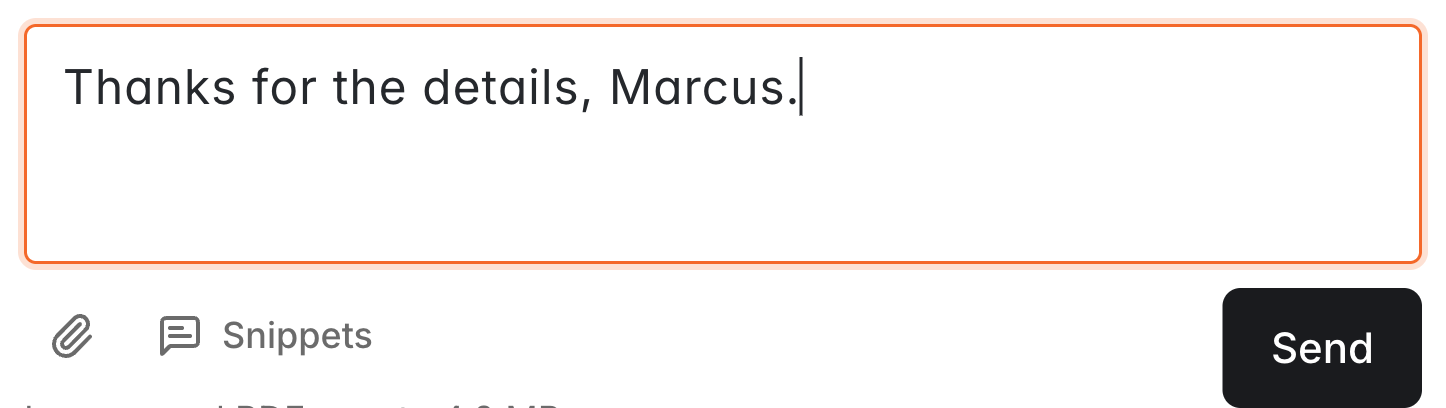
Where You Can Use Snippets
Snippets are available anywhere your team writes an SMS:- replying to an existing SMS conversation
- starting a new SMS conversation
Snippets are currently available for SMS conversations. They do not appear in chat or email composers.
Create and Manage Snippets
Go to Configuration → Snippets to see your organization’s library. Snippets are listed alphabetically, which is the same order your team sees when inserting one.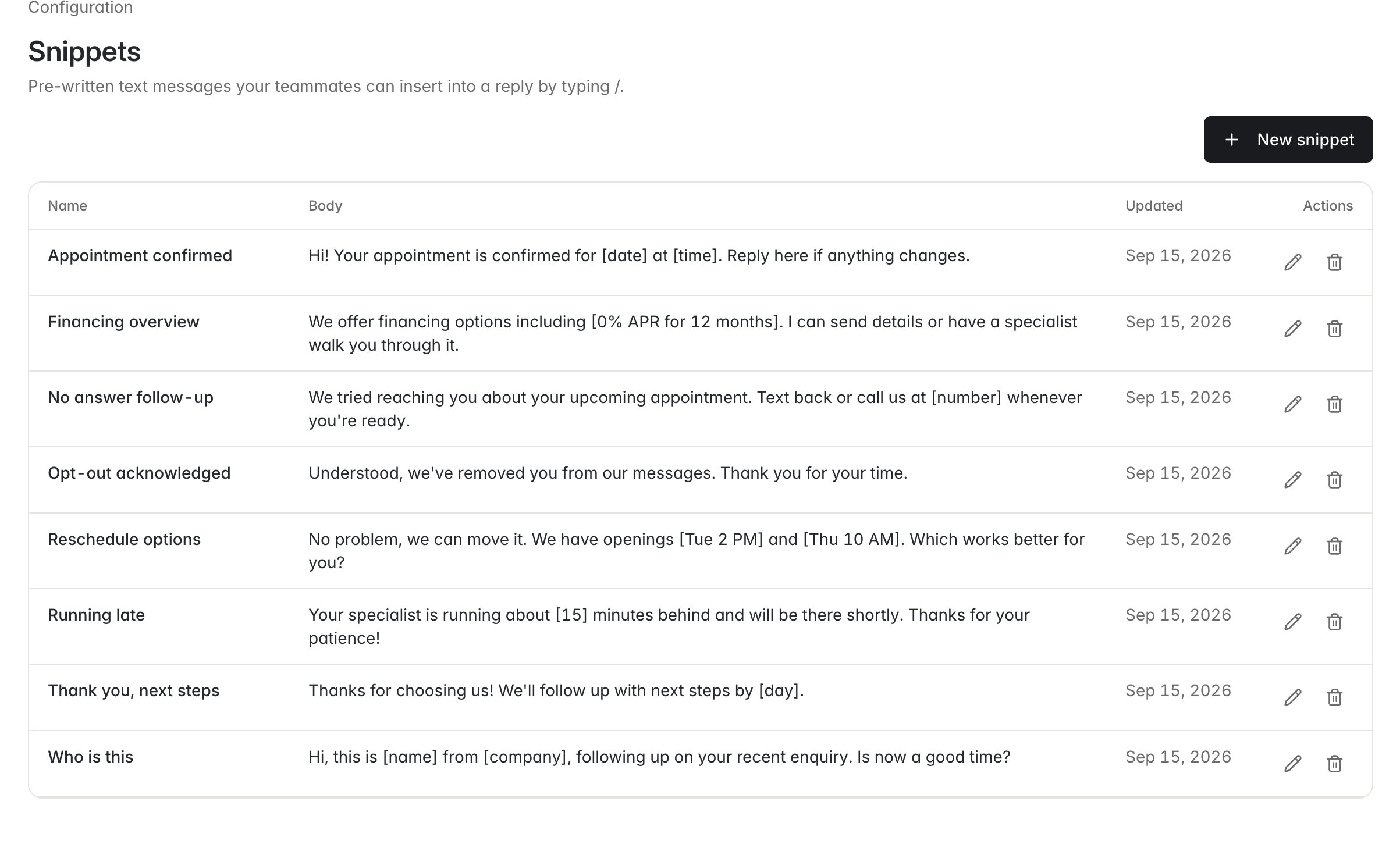
- Name — what your team types after the slash to find it. Short, specific names work best.
- Body — the message that gets inserted.
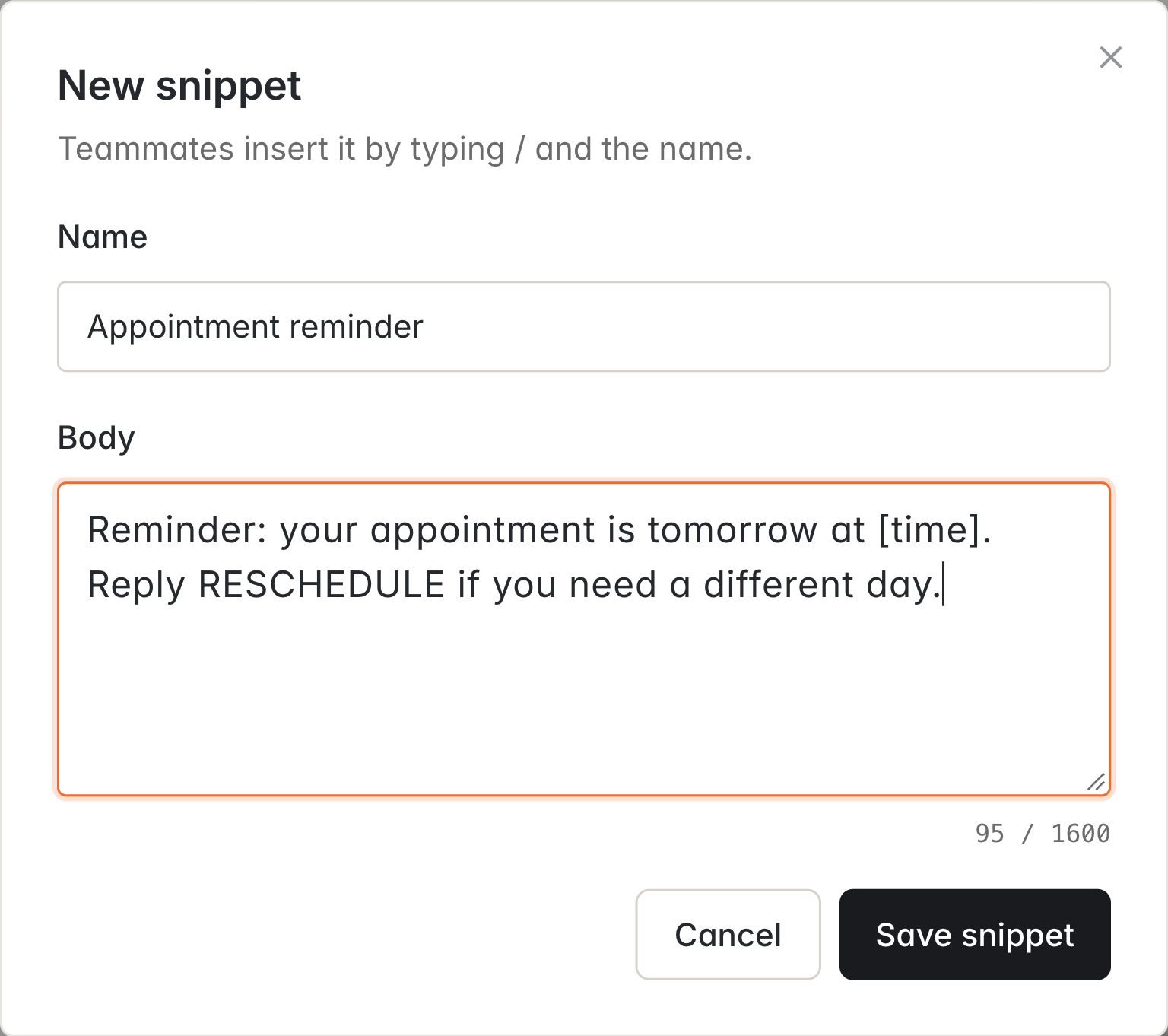
Using Placeholders
Snippets are inserted exactly as written. Simple AI does not fill in customer details automatically, so a common practice is to mark the parts that need editing with square brackets:Limits
The message limit matches the maximum length of a single SMS, so any snippet you save fits in one message on its own.
Who Can Use and Manage Snippets
- Anyone who can open an inbox and reply to an SMS can insert snippets. No extra setup is needed.
- Teammates who can edit your organization’s configuration can create, edit, and delete them. This is the same access that covers settings such as business hours and agent teams.
Tips for Writing Good Snippets
- Name them the way you would search for them. “Reschedule options” is easier to recall mid-conversation than “Template 4”.
- Keep each snippet to one job. Several short snippets beat one long message your team has to trim every time.
- Write them to be edited. Leave the details that change in brackets rather than guessing at a default.
- Review them periodically. Prices, hours, and offers move; the library should move with them.
- Start small. Six to ten snippets covering your most common replies deliver most of the benefit.
Getting Started
If SMS is enabled for your organization, open Configuration → Snippets and add your first one. As soon as it is saved, your team can reach it by typing/ in any SMS reply.
If you do not see SMS options in your dashboard and would like to use them, reach out to support@usesimple.ai or your account team.